PDF to Image Converter — Fast, Secure
Why use a PDF to Image Converter?
If you need to extract pages from a PDF for sharing, editing, posting on social media, or embedding into slides and web pages, a PDF to Image Converter is exactly what you want. Our browser-based tool converts PDF pages to PNG, JPEG, or WebP quickly and privately — everything happens locally in your browser, so your files never leave your device.
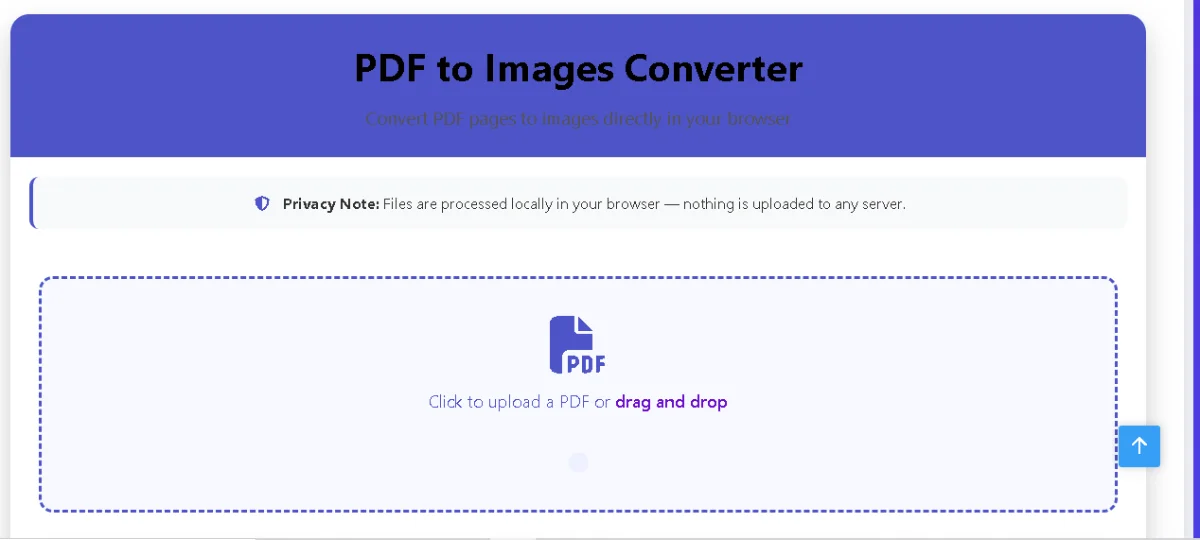
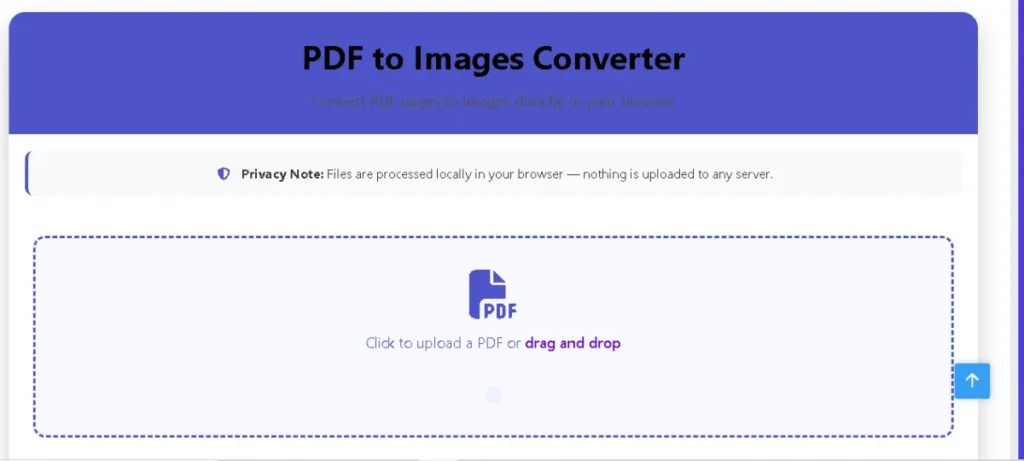
PDF to Images Converter
Convert PDF pages to images directly in your browser
Click to upload a PDF or drag and drop
Converted Images
How to Use the PDF to Images Converter
Select a PDF file or drag and drop it into the upload area
Choose resolution, format, and other conversion options
Click the Convert button to process your PDF
Download individual images or all as a ZIP file
What is a PDF to Image Converter? (Focus: PDF to Image Converter)
A PDF to Image Converter is a utility that renders PDF pages into raster image formats (PNG, JPEG, WebP). Instead of sharing or editing the whole PDF, you get high-quality image files of individual pages that are easier to use in many contexts (presentations, blog posts, social media, printing).
Also use our: Easy Image Resizer – Resize & Compress Photos in 1 Click (Free Tool)
Key Features of this PDF to Image Converter
- Client-side Processing (No Uploads): Files are converted in your browser for privacy and speed.
- Multiple Output Formats: Export as PNG, JPEG, or WebP depending on your use case.
- DPI / Resolution Control: Choose 72, 150, 300, or 600 DPI for screen or print-quality images.
- Quality Slider: Control JPEG/WebP compression for a balance between file size and clarity.
- Page Range Selection: Convert all pages or only the pages you choose (e.g.,
1-3,5). - Transparent or Colored Backgrounds: Keep transparency for PNG/WebP, or force an opaque background for JPEGs.
- ZIP Export: Download all images at once in a ZIP file.
- Thumbnail Previews & Per-page Downloads: See results instantly and download individual pages.
- Memory Safety: Canvas size limits and sequential rendering to avoid OOM on mobile devices.
How to Use the PDF to Image Converter — Step-by-step
- Upload your PDF — Click the upload area or drag-and-drop your file. The tool immediately loads the document locally.
- Choose output format — Select PNG for transparent, JPEG for widely compatible opaque images, or WebP for smaller files.
- Set resolution & quality — Use 150 DPI for web, 300+ DPI for printing. Adjust quality for smaller files.
- Enter page range — Leave blank to convert all pages or type
1-3,5to convert only those pages. - Convert & preview — Click Convert. Thumbnails and download links appear as pages are rendered.
- Download — Download images individually or click “Download All as ZIP”.
Benefits of Converting PDF to Images
- Better Compatibility: Images are accepted everywhere — social media, CMS editors, slide apps.
- Faster Sharing: Single images load faster than PDFs in some cases (especially on mobile).
- Selective Sharing: Share only the pages you want without exposing the entire PDF.
- Design & Editing: Add page images to design tools or annotate without modifying original PDF.
- Print Ready: Convert to high-resolution images for posters, flyers, or print-ready assets.
common Questions (FAQs)
Q: Is my PDF uploaded to a server?
A: No — this PDF to Image Converter processes everything locally in your browser. Nothing is uploaded.
Q: Which format should I choose? PNG, JPEG, or WebP?
A: Use PNG for lossless images and transparency. Use JPEG for photographs and maximum compatibility. Use WebP for smaller file sizes with good quality (if supported by target platforms).
Q: What DPI should I choose?
A: 150 DPI is a good balance for web. Choose 300–600 DPI for print-quality exports; note that higher DPI increases file size and memory usage.
Q: Can I extract only specific pages?
A: Yes — use the page-range input like 2, 1-3, or 1-3,5.
Q: Why did the conversion fail on a very large PDF?
A: Browsers have memory limits. Try lowering DPI or converting fewer pages at a time.

Post Comment