Pan Card Resizer — Resize PAN Photo & Signature Online
A wrong photo size or file size can delay your PAN card application. The Pan Card Resizer makes it easy to crop, resize, compress and download PAN-ready photos and signatures in seconds — all in your browser. No uploads, no signup, and export-ready files for UTI and NSDL portals.
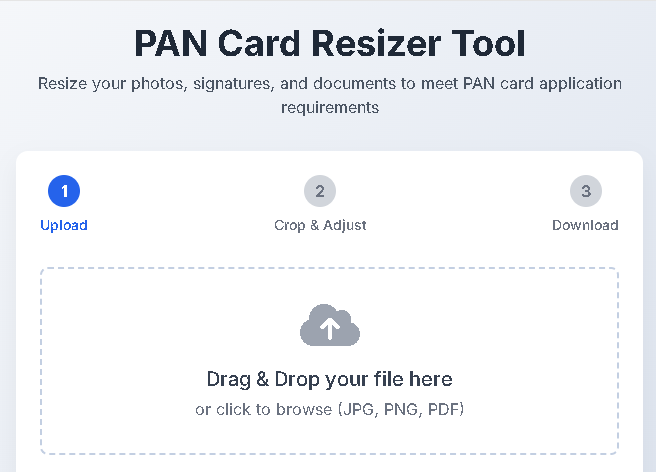
PAN Card Resizer Tool
Resize your photos, signatures, and documents to meet PAN card application requirements
Drag & Drop your file here
or click to browse (JPG, PNG, PDF)
Photo
3.5cm x 2.5cm
Signature
4.5cm x 2cm
Document
A4 Size
Adjustments
Crop Preview
Drag the box to adjust the cropping area
Your File is Ready!
Your document has been resized and is ready for download.
File Details
Type: Photo
Dimensions: 413 x 295 px
Format: JPG
Quality: 90%
Application Info
Website: UTI
Status: Ready for upload
File Size: Approx. 150 KB
How It Works
Upload Your File
Select your photo, signature, or document. We support JPG, PNG, and PDF formats.
Crop & Adjust
Use our tools to crop, rotate, and resize your file to meet PAN card requirements.
Download
Get your perfectly sized file in JPG, PNG, or PDF format, ready for upload.
PAN Card Resizer Tool © 2023 | All processing happens securely in your browser
Why use a Pan Card Resizer?
Preparing the correct image for PAN applications is simple if you use the right tool. A specialized pan card resizer ensures your photo or signature matches the exact dimensions required (photo: 3.5×2.5 cm, signature: 4.5×2 cm), while preserving clarity and keeping file size within portal limits.
Benefits of our Pan Card Resizer
- Accurate presets for PAN photo & signature sizes
- Live crop preview and aspect-ratio lock
- Rotate, flip and quality slider for compression
- Browser-based processing — your images stay on your device
- Export options: JPG and PNG (PDF support available with converter)
Step-by-step: How to use the Pan Card Resizer
1. Upload your image
Click the Upload area or drag & drop your photo or signature file (JPG/PNG). Use a straight-on, well-lit image for best results.
2. Select the preset
Choose Photo (3.5×2.5 cm) or Signature (4.5×2 cm). The pan card resizer will set the crop aspect ratio to the correct target automatically.
3. Crop & align
Drag the crop box to frame the face or signature area. Use rotate and flip tools if needed. Make sure the subject is centered and fills the crop area appropriately.
4. Adjust quality & format
Use the quality slider to reduce file size while keeping clarity. Select JPG for photos (smaller files) and PNG for graphics or high-contrast signatures.
5. Download
Click Download Resized File — the pan card resizer will create a file at the correct pixel dimensions ready for upload to UTI/NSDL.
Quick tips for best results
- Background: Use a plain, light background (white or neutral).
- Lighting: Even lighting avoids shadows on the face or signature.
- Framing: For photos, keep the head centered and not too small inside the frame.
- Signature quality: Use a dark pen on white paper and photograph straight-on.
- File size: If a portal rejects your file, lower the quality slider to 80–90% or crop tighter.
Troubleshooting
- “PDF processing requires additional libraries” — Download JPG/PNG and convert to PDF using a separate converter or enable PDF export in your workflow.
- Image looks blurry after compression — increase the quality slightly or use a higher-resolution source image.
- Crop misaligned on mobile — rotate to landscape or increase browser/window size so the cropper recalculates correctly.
Frequently Asked Questions (FAQ)
Q: Does the Pan Card Resizer upload my photos to a server?
A: No — this pan card resizer processes images entirely in your browser. Files remain on your device unless you upload them elsewhere.
Q: Which format should I choose — JPG, PNG or PDF?
A: Choose JPG for photographs to keep file size small. Use PNG for logos or high-contrast signatures. Convert to PDF only if your portal requires it.
Q: What DPI should I use for PAN photos?
A: Export at 300 DPI for good clarity. Higher DPI is fine if your source supports it, but watch the final file size.

Post Comment