Image Compression Tool — Compress Images Fast & Download ZIP
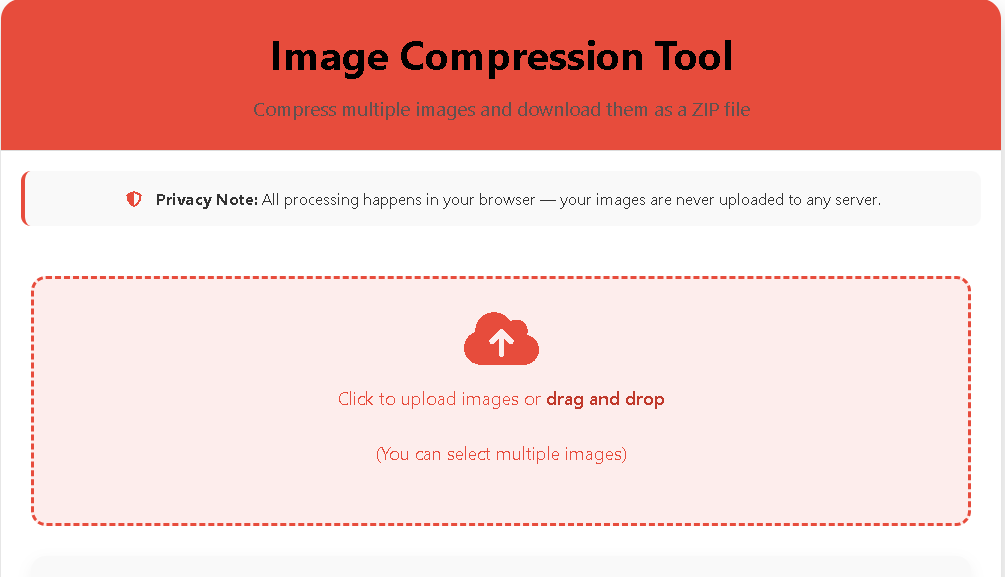
Image Compression Tool — Quickly reduce image file sizes without sacrificing quality. This free, browser-based tool supports WebP, JPEG, and PNG, allows batch processing, and keeps your images private — nothing leaves your device.
Advanced Image Compression Tool
Fast compression with advanced options – process multiple images quickly
Click to upload images or drag and drop
(You can select multiple images – up to 5000)
Processing Images
Advertisement Space
Your ad could be hereCompressing your images…
Images processed: 0 / 0
Time elapsed: 0s
Estimated time left: Calculating…
Memory usage: Calculating…
How to Use the Advanced Image Compression Tool
Select multiple images or drag and drop them into the upload area
Choose compression format, quality, and dimensions
Click the Compress Images button for quick processing
Download your compressed images as a ZIP file
Why this tool matters (beginner friendly)
Images are usually the biggest files on a webpage — large images slow down page loading, harm user experience, and lower SEO rankings. This Image Compression Tool helps you reduce image sizes quickly and safely in your browser so your images stay private while improving website speed, saving bandwidth, and increasing Core Web Vitals scores.
Key features
- Client-side processing: Everything runs in your browser — no uploads to servers, protecting privacy.
- Multiple formats: Export as WebP (recommended), JPEG, or PNG.
- Batch compression: Compress many images at once and download them as a single ZIP file.
- Quality control: Slider to set quality (40–100%) for a balance between size and clarity.
- Resize on-the-fly: Set max width and height to resize large photos while keeping aspect ratio.
- Preview & compare: See before/after sizes and percent reduction for each image.
- Progress & status: Real-time progress bar and completion status.
How to use the Image Compression Tool (step-by-step)
- Open the tool in a modern browser (Chrome, Edge, Firefox, Safari).
- Upload images by clicking the Upload area or dragging files into it. You can select multiple photos at once.
- Choose output format: WebP gives the best compression for most images (smaller files with similar quality). Use JPEG for wide compatibility; PNG for lossless needs.
- Set quality: Drag the Quality slider (recommended starting point: 75–85 for photos).
- Set max width/max height if you want to downscale large images (e.g., 1200px width for blog featured images).
- Click Compress Images. Watch the progress bar while images are processed in your browser.
- Review results in the results modal — compare original vs compressed sizes and thumbnails.
- Download all as ZIP to get a single file with every compressed image.
Also use our Ultra Clear Image Enhancer for Sharper, Professional Photos
Best settings for common use-cases
- Blog featured images: Format: WebP, Width: 1200px, Quality: 75–85.
- Social thumbnails / cards: Width: 600–800px, Quality: 70–80.
- High-quality portfolio photos: Format: JPEG, Quality: 85–90 (or PNG for lossless if needed).
- Maximum compression for speed: WebP, Quality: 60–70 and resize to the actual display size.
FAQ (good for users and rich snippets)
Q: Is my image uploaded to a server? A: No. All processing is done locally in your browser — images are not uploaded to any server.
Q: Which format should I choose? A: WebP is recommended for best compression. Choose JPEG for browser compatibility and PNG for lossless needs.
Q: Can I compress many images at once? A: Yes — the tool supports batch compression and creates a ZIP for easy download.
Q: Will image quality degrade? A: Compression reduces file size and can slightly affect quality depending on settings. Use higher quality values for minimal visual loss.
Q: Any limits on file size? A: Limits depend on browser memory and device. For best results, compress in small batches for very large images.

Post Comment