Custom Payment QR Generator (India) — Guide, Uses, Safety & Troubleshooting
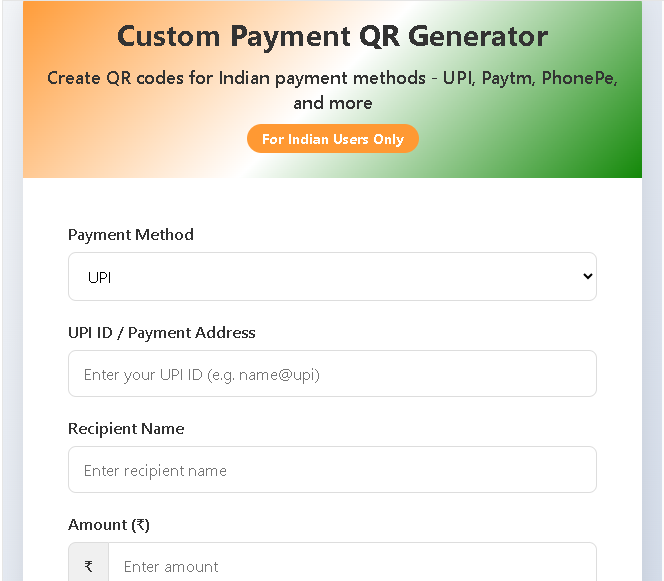
A Custom Payment QR Generator makes it easy to create scannable payment codes for collecting money quickly and professionally. For merchants, freelancers, shopkeepers and anyone who accepts digital payments in India, a tailored QR code (UPI, Paytm, PhonePe, Google Pay, etc.) speeds up checkout, reduces mistakes, and improves customer experience. This guide focuses on what you can do with a Custom Payment QR Generator, how to prepare the right payment details, printing and sharing best practices, security tips, and troubleshooting common scan issues.
Custom Payment QR Generator
Create QR codes for Indian payment methods – UPI, Paytm, PhonePe, and more
Your QR code will appear here
What a Custom Payment QR Generator gives you
Using a Custom Payment QR Generator you can produce a clean, shareable image that encodes:
- Payment address / UPI ID or other payment handle.
- Optional amount so customers don’t have to type it.
- Optional payee name and description/note to help customers confirm details.
- A single downloadable PNG (or shareable file) that works with popular Indian payment apps.
This is perfect for in-person sales, invoices, social media posts, small events, or sending a quick payment request.
When to use it
- At a kiosk or shop counter for fast, contactless payments.
- When sending payment requests over chat or email.
- For social selling (WhatsApp, Instagram) where buyers need a simple tap-to-pay option.
- When issuing invoices, receipts, or donation links.
- For events, stalls, or roadside sales where a printed QR is convenient.
How to prepare payment details (what to fill in)
Most Custom Payment QR Generators ask for a few simple fields. Fill them carefully:
- Payment method: Choose UPI, Paytm, PhonePe, Google Pay, bank transfer, etc.
- Payment address / UPI ID: Your merchant UPI ID (example: merchant@bank). For non-UPI methods use the exact payment handle required by that app.
- Recipient name (optional): Helps customers confirm they are paying the right person.
- Amount (optional but helpful): Fix the amount for single-price items, or leave blank for flexible payments.
- Description / note: A short message shown to the payer (invoice number, order id, purpose). Keep it concise.
When the QR is scanned, most UPI apps will auto-fill these fields (if the generator included them), and the payer only needs to confirm.
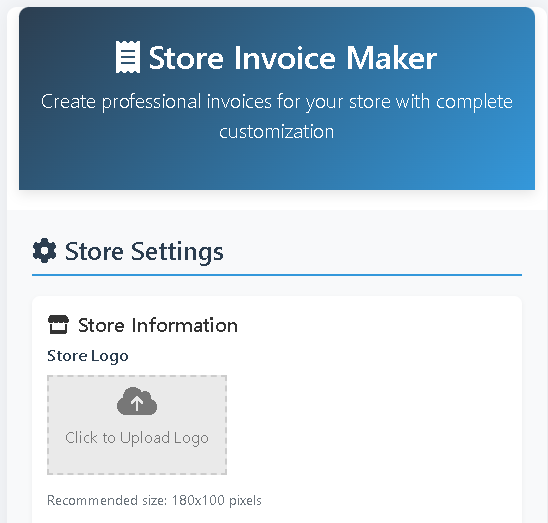
Also Use Our Store Invoice Maker — Complete Guide: Features, Uses, Best Practices & Troubleshooting
Best practices for printing and sharing QR codes
- Use high contrast: Black-on-white QR images scan best. Avoid busy backgrounds or placing the QR over colorful patterns.
- Maintain quiet zone: Keep a clear white margin around the QR (no text or logos touching the edges).
- Size matters: For printed receipts or posters, keep the QR at least 4–5 cm (≈1.5–2 in) wide for easy scanning. Digital images for chat can be smaller but still readable.
- PNG preferred: Export as PNG for lossless quality; avoid heavy JPEG compression which can corrupt QR modules.
- Add context: Place a short label like “Scan to Pay — UPI / Paytm / PhonePe” and include the payee name so people trust the code.
- Add fallback text: Show the UPI ID or payment address below the QR so users can type it manually if scanning fails.
- Print test: Always test-scan the printed QR using multiple phones and apps before distributing.
Security and safety tips
- Do not embed sensitive personal data. Only include the payment handle and benign notes. Never encode full bank account details or personal IDs in ways that can be misused.
- Verify before sharing publicly. Make sure the encoded payment address is correct — small typos can route money to the wrong recipient.
- Avoid public exposure of changing links. If you expect many different invoices, generate unique QR codes per invoice rather than reusing the same one openly.
- Label QR codes clearly. Scammers sometimes swap QR images — clear branding and payee name reduce risk.
- Educate staff and customers. Encourage customers to check the payee name shown in their app before confirming payment.
Limitations to keep in mind
- QR is only a pointer. For UPI QR codes, the payment still requires confirmation in the payer’s banking/UPI app.
- Amount field may be editable. Some apps allow the payer to change the pre-filled amount — don’t rely on it for strict, uneditable payment capture.
- App compatibility varies slightly. Most major Indian payment apps read standard UPI QR information, but always test across apps your customers use.
- Bank transfer support differs. If using bank details instead of UPI, some apps won’t auto-populate fields from a QR.
Troubleshooting common scan problems
- QR won’t scan: Check contrast, size, and quiet zone; increase size or re-export at higher resolution.
- Blurry or pixelated image: Re-export as PNG at a larger pixel size or reprint at a higher DPI.
- App shows wrong payee name: The name displayed comes from the payer’s app database for that UPI ID — confirm the UPI ID is correct.
- Amount not populated: Ensure the generator included the amount field; some wallets ignore optional parameters.
- Scanner reads garbage: If QR contains newline or unexpected characters, regenerate with a cleaned payment string and test again.
Quick FAQ
Q: Can I use the same QR for multiple customers?
A: Yes — for general payments (like donations or store counters) reuse is fine. For invoices, generate one per invoice to reduce confusion.
Q: Is it safe to post QR codes on social media?
A: You can, but be careful: anyone who scans it can attempt to pay. For one-time requests, consider generating a fresh QR per invoice.
Q: What if a customer’s app doesn’t accept the QR?
A: Offer the UPI ID as fallback text or a manual payment option.
Conclusion
A Custom Payment QR Generator is a practical, low-friction way to accept digital payments in India. Fill in accurate payment details, export a high-contrast PNG, test on multiple devices, and follow the safety tips above. When used responsibly — with clear labeling and periodic regeneration for invoices — QR payments make collecting money fast, professional, and customer-friendly.

Post Comment